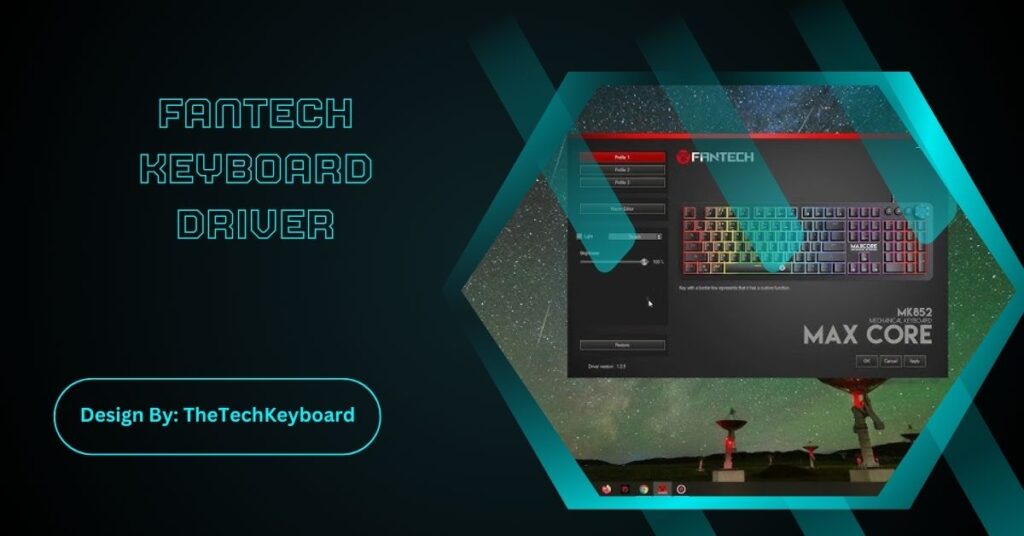

The Fantech keyboard driver enhances functionality by enabling RGB lighting, macros, and firmware updates. It’s essential for unlocking full features and optimizing your gaming or typing experience.
In today’s competitive gaming world, having the right gear can make a huge difference—and your keyboard is no exception. Fantech keyboards are widely known for their stylish design, responsive keys, and budget-friendly pricing. However, to enjoy the full functionality of these keyboards, especially the customizable lighting and macro features, you need to install the Fantech keyboard driver.
This guide will walk you through everything you need to know about Fantech keyboard drivers—what they are, why they matter, how to download them, and how to fix common issues.
What Is a Fantech Keyboard Driver?
A keyboard driver is a small piece of software that acts as a bridge between your operating system (like Windows) and your keyboard hardware. In the case of Fantech keyboards, the driver enables advanced functions like:
- RGB lighting customization
- Macro key programming
- Game mode settings
- Firmware updates
Without the proper driver, your Fantech keyboard might only function with basic typing features, missing out on its full capabilities.
Why You Need a Fantech Keyboard Driver?
Many users wonder if installing a driver is necessary. If you’re only using your keyboard for typing, maybe not—but if you want to unleash its full potential, here’s why you need the Fantech driver:
- Access to RGB Lighting Controls: Fantech offers various RGB modes in its gaming keyboards. The driver lets you customize color effects, brightness, speed, and sync with other devices.
- Custom Macro Settings: Through the driver’s software, you can assign complex actions or key combinations to a single key—essential for gamers or productivity users.
- Game Mode Activation: Disable specific keys like the Windows key during intense gaming sessions to avoid interruptions.
- Firmware Updates: Some advanced Fantech keyboards support firmware upgrades, which are rolled out via the driver tool.
How to Download and Install Fantech Keyboard Driver
Getting your hands on the correct driver is crucial. Here’s how to do it:
Step 1: Identify Your Keyboard Model
Look on the bottom of your keyboard or your user manual for the exact model (e.g., Fantech MK884 Optilux, Fantech MaxFit61, or Fantech K511).
Step 2: Visit the Official Fantech Website
Go to the official Fantech website:
👉 https://fantechworld.com/download
Step 3: Select Your Model and Download the Driver
- Scroll through the product list or search by model name.
- Click Download next to the corresponding driver file.
Step 4: Install the Driver
- Unzip the downloaded file (if necessary).
- Double-click the installer and follow the on-screen instructions.
- Restart your computer after installation.
Compatible Operating Systems
Most Fantech drivers are compatible with:
- Windows 7 / 8 / 10 / 11 (32 & 64-bit)
- macOS (limited support depending on the keyboard model)
Note: Not all models have macOS drivers. RGB and macro features may be unavailable on Mac.
Top Fantech Keyboards That Require Drivers
Here are some popular Fantech keyboards that use drivers for full functionality:
| Keyboard Model | RGB Support | Macro Keys | Software Required |
| Fantech MK884 Optilux | Yes | Yes | Yes |
| Fantech MaxFit61 | Yes | Yes | Yes |
| Fantech K613L Fighter TKL | No | No | No |
| Fantech K511 Booster | Yes | No | Optional |
| Fantech MaxFit67 | Yes | Yes | Yes |
Troubleshooting Fantech Keyboard Driver Issues
If you’re facing problems with your Fantech driver, here are some common issues and solutions:
1. Driver Not Detected
- Make sure you’ve installed the correct driver for your model.
- Try a different USB port.
- Disable antivirus temporarily during installation.
2. RGB Not Working
- Open the driver software and check if lighting is enabled.
- Ensure you’ve saved the settings to the keyboard memory.
- Update the firmware if prompted.
3. Macros Not Saving
- Run the driver software as an administrator.
- Double-check that you’re assigning the macro to the correct profile.
4. Software Crashing
- Uninstall and reinstall the latest driver version.
- Check for Windows updates or driver conflicts with other software.
Also Read: Pedrovazpaulo Business Consultant – Modern Business Solutions!
Alternatives If Driver Isn’t Available
If your keyboard model doesn’t have an official driver or you’re using an OS like Linux or older macOS:
- Use default OS drivers for basic keyboard functionality.
- Use third-party tools like AutoHotkey (Windows) for macros.
- For RGB, some users try OpenRGB, but compatibility is limited.
Tips to Optimize Your Fantech Keyboard Experience
Here are some quick tips to get the most out of your keyboard and driver:
- Create multiple profiles for different games or workflows.
- Regularly check the Fantech website for updates or bug fixes.
- Use onboard memory (if available) to store settings when switching PCs.
- Clean your keyboard regularly to ensure key responsiveness.
FAQs:
1. How do I know if my Fantech keyboard needs a driver?
Check the official website or manual. If your model supports RGB lighting, macros, or firmware updates, it likely requires a specific driver for full functionality.
2. Can I use my Fantech keyboard without installing a driver?
Yes, but you’ll only get basic typing functionality. Features like RGB customization and macro programming won’t work without the official driver.
3. Where can I find the latest Fantech keyboard driver?
Visit fantechworld.com/download and search for your keyboard model to download the latest driver version.
4. Is the Fantech driver compatible with macOS?
Some Fantech models support macOS, but features may be limited. Check the download page for specific OS compatibility before installation.
5. What should I do if the driver software doesn’t detect my keyboard?
Try changing the USB port, reinstall the driver, run as administrator, or disable antivirus temporarily. If the issue persists, check for firmware updates or contact Fantech support.
Conclusion
The Fantech keyboard driver is essential for accessing all the powerful features your device offers. Whether it’s customizing RGB lighting, programming macros, or enhancing gaming performance, the driver software is your control center. Always ensure you download the latest version from the official site and install it properly. With the right setup, your Fantech keyboard becomes a versatile tool that enhances both work and play. Don’t miss out on its full potential—install the driver and take control today.