

Microsoft Outlook is a reliable and robust email management client that offers both online and offline modes (also known as Cached Exchange Mode) for accessing Office 365 and Exchange email accounts.
Users can create email folders and sub-folders to store and manage their emails in the client easily. Furthermore, they can set rules to automatically move specific emails or emails from a specific user or with the subject, etc., to these folders and sub-folders.
The changes are synchronized between the Outlook client and the mailbox server. Thus, when you open Outlook Web App (OWA) or access email via Outlook web access, you see all the folders and sub-folders created.
However, many users have encountered an issue where they can see the subfolders in the OWA, Online Mode, and Outlook Web access but can’t access them in their Outlook client on Windows. But why does this happen, and how can you solve it?
That’s exactly what we are going to answer in this blog. You will learn the reasons behind such discrepancies and solutions to resolve them and restore your mail items.
Reasons for Sub-Folders Missing in Cached Exchange Mode
There are three common reasons behind such issues where users find missing sub-folders in their Outlook client.
Conflict
Conflicts with other software, such as antivirus or third-party utility, can impact how Outlook works. For example, it may crash, stop responding, or work slowly due to conflicts. Missing sub-folders and email items could also be an outcome of such conflict with other programs on the system.
Profile Corruption
Corrupt email or user profile is also a reason that can lead to such issues and other problems like outdated emails, poor Outlook performance, errors while sending or receiving messages, and other discrepancies.
Outlook Data File Damage
Outlook data files, such as OST, may get damaged or corrupt due to oversizing or reasons, such as sudden system crash, Outlook crash, incompatible or faulty add-in, virus or malware intrusion, etc.
Once damaged, the file may no longer hold more or newer data or synchronize it with the mailbox as efficiently as earlier due to inconsistencies, leading to missing sub-folder and other similar errors. In addition, if the errors found in the OST file are not fixed, the file may also become inaccessible and lead to data loss.
Solutions to Fix Sub-Folders Not Appearing in Cached Mode
Follow these solutions to fix the sub-folders missing or not appearing problem in Cached Exchange mode (offline mode).
Close All Other Applications
To check whether other applications are causing the issue in Outlook, temporarily close all the program files, including your antivirus software. Then open Outlook and check whether the problem is fixed, and you can see the sub-folders.
You may manually update all the subfolders via Send/Receive tab> Update Folder option.
Check The Mailbox Size
As the mailbox storage depletes or OST file gets large, Outlook starts to slow down and takes time to synchronize changes. To avoid such performance issues and ensure the changes are reflected without much delay, you should always keep your OST file size under the recommended limits. For this, you can follow these tips,
- Keep the Deleted Items folder clean
- Remove Spam and unwanted emails from your mailbox permanently
- Archive old emails that you no more require to access frequently. Archiving emails saves a copy of mailbox items on your local storage and then deletes them from your mailbox, thereby reducing the OST file size to a significant extent.
Once you perform these actions, you may solve the missing sub-folders issue as Outlook will be much faster to retrieve and store information to or from the local cache.
Limit Folder/Sub-Folders and Mail Items Per Folder
Although you can create 5000 folders/sub-folders for your Office 365 account, you should keep the number of folder and sub-folders up to 500 to avoid such discrepancies. This is also valid for Exchange 2010 and later users.
Similar to the large mailbox, having a large number of mail folders can also cause performance issues in Outlook and may lead to missing sub-folders.
Besides sub-folders, you should never exceed the limit of the number of items per folder. According to Microsoft, you can have 100,000 items per folder and 5000 items per Calendar folder. Exceeding these limits can lead to issues and prevent you from accessing some of your mail items.
Create New Sub-Folders
If certain sub-folders are visible in OWA but not in the Outlook client, you can try creating new sub-folders via OWA and then check if those folders are visible. Similarly, create a sub-folder via Outlook client and check if it’s visible in the OWA.
If any of these makes the new sub-folder appear in both, move the mail items from the sub-folder visible in OWA only to this new sub-folder.
Then in Outlook client, go to Send/Receive tab and click Update Folder. This will update the folders and sync the mail items.
Enable Shared Folders Download
If you are trying to sync the sub-folders present in the Shared Mailbox and encountering the issue, follow these steps to enable the download option for shared folders.
- Open Outlook and go to File> Account Settings> Account Settings…
- Select the email profile and then click Change.
- Click More Settings.
- Click Advanced and then click the Download shared folders checkbox.
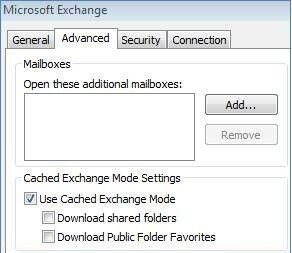
- Click Apply> OK and restart Outlook.
Disable Cached Exchange Mode
Disabling cached Exchange Mode will switch your Office 365 or Exchange email profile to online mode. In Online Mode, the Outlook client connects and maintains a constant connection with the mailbox server. Thus, any changes will be reflected immediately. The steps are as follows,
- Open Outlook and go to File> Account Settings> Account Settings…
- Select the email profile and then click Change.
- Uncheck the Use cached Exchange Mode option and then click Next
- Click OK and then restart Outlook for changes to take effect.
This will witch your profile to Online Mode. Check if all sub-folders are available now.
Create a New Outlook Profile
Replacing a corrupt profile may also resolve this issue quickly if the above solutions don’t work. The steps are as follows,
- Open Control Panel and click on Mail.
- Click on the Show Profiles… and then click Add.
- Enter a name for your profile and click OK
- Follow the wizard to add your Outlook email account again
- This will create a new profile.
- Once the new Outlook profile is added, wait for the synchronization to finish and check all your mail items and subfolders.
If the issue is resolved, make sure to remove your old profile.
Rebuild Offline Folder File (OST)
As a final solution, you can try recreating the Offline Outlook data file (OST). This will remove the inconsistent or damaged OST file that may be a reason behind the missing sub-folders in Outlook and other sync issues.
To recreate OST, you need to delete your default or faulty OST file after taking a backup.
IMPORTANT NOTE: This solution works only if your email profile is active and not disabled or removed from the server.
The steps are as follow,
- Press Windows+R, type %localappdata%/Microsoft/Outlook, and click OK to open the OST file location.

- Close Outlook and backup the OST file to another drive or partition.
- Delete the default OST file
- Launch Outlook. This will create a new OST file at the same location and sync all your mailbox items.
After the sync, you will see all folders are updated in the Outlook status bar. Next, check the folders, emails, and subfolders.
Most importantly, if you find missing emails after rebuilding the new OST, use a professional OST to PST converter tool, to convert the backup OST file to PST format and then import the PST to your new OST file via Outlook Import Export wizard.
The tool helps you recover and extract mail items, such as emails, contacts, attachments, tasks, notes, calendar items, etc., from inaccessible or orphaned OST files to PST. You may also directly export the mail items to your Office 365 or Live Exchange server mailboxes.
Conclusion
By default, Outlook setups an Exchange or Office 365 email account in the Cached Exchange Mode and stores a synchronized copy of mail items in an Offline Storage Table (.ost) file. When you add your profile in Outlook, it starts synchronizing all the mail items, folders, and sub-folders from the mailbox server to your local cache (.ost).
After the synchronization, you can access all your mail items and folders from the Outlook client. However, if there are missing sub-folders or mail items from subfolders or Outlook displays “This folder has not yet been updated” message, follow the solutions and troubleshooting steps discussed in this blog to resolve the issue and restore your missing sub-folders in outlook client.
Further, use an OST to PST converter software if the issue isn’t resolved or you find missing emails to return all your mail items from the local OST file to PST.